


SnapShot
SnapShot is a simple program that captures a part of the screen and then keeps it visible in a top most window. SnapShot is excellent when working with multiple applications and trying to verify or manually copy data between programs.
For example, suppose you're trying to compare the data in two different programs. You could try to arrange the two programs so the data is visible in both or you could manually switch back and forwards comparing data.
With SnapShot, you draw a box around the piece of information your interested in, and SnapShot makes it appear in a little window that appears in front of all other programs. You can then easily compare the data without switching back and forth!
Free Download: SetupSnapShot-1308.exe (version 1.3)
Version 1.3 and later require 64-bit Windows 10 or later. New in this version, SnapShot runs as an icon in the system tray, so a capture is always just a click away - see What's New in 1.3 below.
For older versions of Windows, or 32-bit systems, use the previous version: SnapShot11Setup.exe (version 1.1)
Installing SnapShot
To install SnapShot simply click on the installation program shown above and follow the directions.
Once installed, SnapShot starts automatically in the system tray, and is set to start in the tray whenever Windows starts. (To turn that off, right click the tray icon and untick "Run at Startup").
Using SnapShot
To use SnapShot:
- Make sure the information you want to capture is visible on screen.
- Click the SnapShot icon in the system tray (or the SnapShot icon in the Start menu).
- Your mouse cursor will turn to a cross hair.
- Click and drag to draw a box around the information of interest.
- SnapShot will display the information in a window.
- Switch to the other application, and the captured information will stay visible.
- When finished, simply close SnapShot like you would any other application.
Clicking without dragging (instead of drawing a box) opens the most recently captured image, and pressing Escape cancels the capture.
The Tray Icon
Left click the SnapShot tray icon to capture a region. Right click it for a menu with these commands:
- Capture Region - draw a box around the area to capture (same as left clicking the icon).
- Capture Region (Delayed 5 Seconds) and (Delayed 15 Seconds) - waits before capturing, giving you time to open a menu or arrange things on screen.
- Capture Same Region Again - captures the same region as last time, without having to draw a box. Also available delayed 5 or 15 seconds.
- Include Cursor in Delayed Captures - whether the mouse pointer appears in delayed captures.
- Open Last Captured Image - opens the most recently captured image.
- Open History Folder - opens the folder where previous captures are kept.
- Run at Startup - whether SnapShot starts in the tray when Windows starts.
- Exit - removes the tray icon. (Run SnapShot from the Start menu to capture without the tray icon).
The SnapShot Window
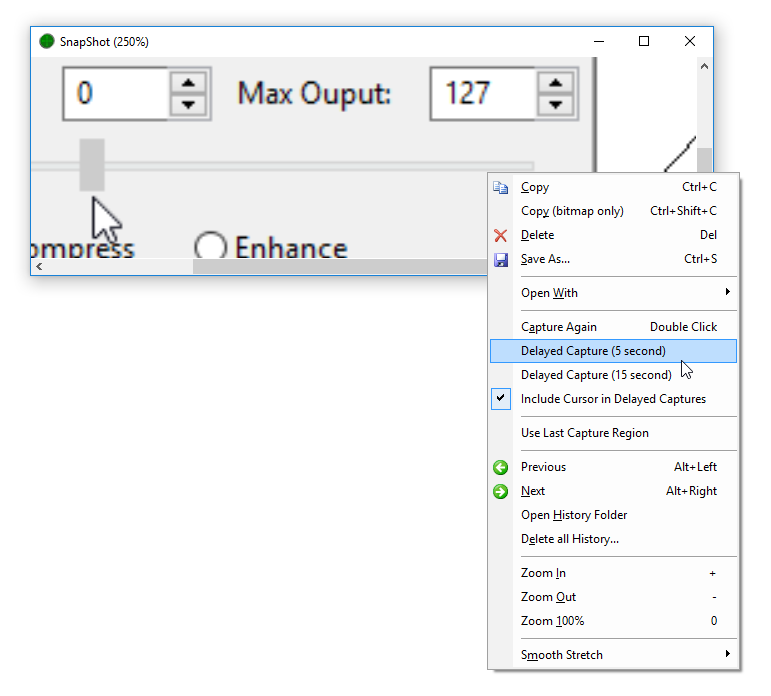
Right click a captured image for these commands:
- Copy (Ctrl+C) - copies the image to the clipboard.
- Copy at 96dpi (Ctrl+Shift+C) - copies the image scaled to 96dpi, (useful on high-dpi displays when pasting into programs that don't scale images).
- Copy Path - copies the location of the saved image file as text.
- Delete (Del), Save As... (Ctrl+S) and Open With - delete the image, save a copy of it, or open it in another program.
- Capture Region (or double click the window), Capture Same Region Again and their delayed versions - the same as the tray icon commands above.
- Previous and Next (Alt+Left/Right) - move between previously captured images.
- Zoom In, Zoom Out and Zoom 100% (+, - and 0 keys or the mouse wheel) - zoom the image. Click and drag inside the window, or use the arrow keys, to scroll.
What's New in 1.3
Build 1308:
- Now requires 64-bit Windows 10 or later. (Use version 1.1 above for older systems).
- New tray icon mode - SnapShot stays in the system tray, ready to capture with a single click. The installer starts it in the tray and sets it to start with Windows.
- Capture commands reorganized into "Capture Region" and "Capture Same Region Again" (each with 5 and 15 second delayed versions), replacing the previous "Use Last Capture Region" option.
- Copy commands reorganized: Copy (Ctrl+C) now copies just the image, Copy at 96dpi is now Ctrl+Shift+C and the new Copy Path command copies the file location.
- Improved capture of the mouse pointer - now drawn at the correct size on high-dpi and mixed-dpi multi-monitor setups and with custom pointer sizes.
- Fixed mouse wheel zooming on trackpads.
Also includes these improvements added since version 1.1 build 104:
- Open With command, to open a captured image in another program.
- Option to include or exclude the mouse pointer in delayed captures.
- Archive folder support - see Archive Folder below.
- Ability to re-capture the same screen region.
- Support for high-dpi displays, including the Copy at 96dpi command.
What's New in 1.1
- Zooming support (via mouse-wheel, +/- keys and context menu).
- Scrolling support (via scrollbars, arrow keys and click+drag inside viewer)
- New right click context menu.
- New Copy command copies captured image to clipboard
- New Save command saves captured image to a file (bmp, gif, jpeg, png or tiff formats supported)
- New history feature automatically keeps the previous 100 (configurable) captured images. Use Alt+Left/Right to move between previously saved images. See below for information on customizing the history.
- Fix to allow capturing of top-most windows (eg: task manager)
- Change single click in viewer window to start a new capture, to double click.
- When running a new capture (double click or Capture Again command), the viewer window is automatically hidden.
- Support for delayed captures (right click on SnapShot window and choose delayed capture)
- Copy command not copies file location as text (as well as image)
- Open History Folder command now selects the currently displayed image.
- New icon
- Support for multiple monitors
- New Copy Bitmap Only command to copy the bitmap without the filename. (Eg: for paste into MSN)
Adjusting SnapShot's History Settings
SnapShot keeps the previous 100 captured images in folder under "My Documents" called "My SnapShot Images". To use a different folder, or the adjust the number of images kept requires editing the system registry.
- Press Windows+R to open the Run dialog.
- Type regedit and press enter.
- Navigate the tree on the left had side and locate the key HKEY_CURRENT_USER\Software\Topten Software\SnapShot\Settings
- Create a new string value called "HistoryFolder" by right clicking in the right hand side and selecting New -> String Value.
- Set the value to the location to the name of the folder to store history images in.
- Create a new DWORD value called "MaxHistory" and set it to the maximum number of previous images to keep.
Archive Folder
SnapShot (build 107 and later) supports archiving old snapshots instead of simply deleting them. To enable this feature
- Press Windows+R to open the Run dialog.
- Type regedit and press enter.
- Navigate the tree on the left had side and locate the key HKEY_CURRENT_USER\Software\Topten Software\SnapShot\Settings
- Create a new string value called "ArchiveFolder" by right clicking in the right hand side and selecting New -> String Value.
- Set the value to the location where old SnapShot images should be copied to. The value can be a relative path from the history folder, or an absolute path.
Tips
- You can run SnapShot multiple times at once to capture separate pieces of information.
- SnapShot can also be run from the command line:
SnapShot.exe /capture:regionor/capture:same(optionally with/delay:5or/delay:15),/opento open the last captured image, or/trayto start in the tray.